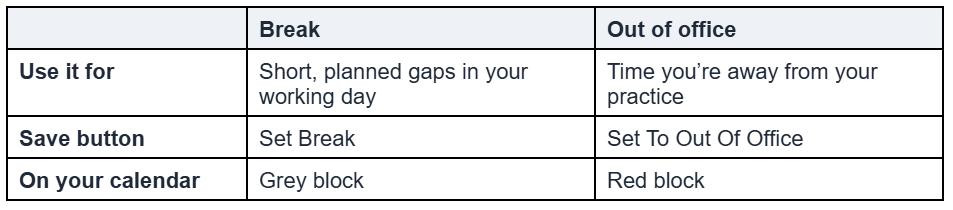
Out of office marks time when you’re away and not seeing clients, like a personal appointment, a workout or an outside commitment. It works like a break, but appears in a different color, so time away is easy to spot on your calendar.
Note: All clients, names, emails, appointments and other data shown in the screenshots are sample data we created for this guide. They are not real people or real records.
When to use this
- You’ll be away for part of a day.
- You have a regular personal commitment during working hours.
Steps
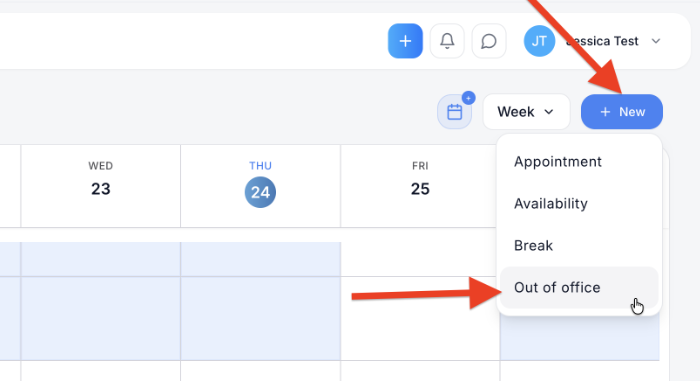
1. In Pro Calendar, click + New, then choose Out of office. The form opens with the Out of office tab highlighted.
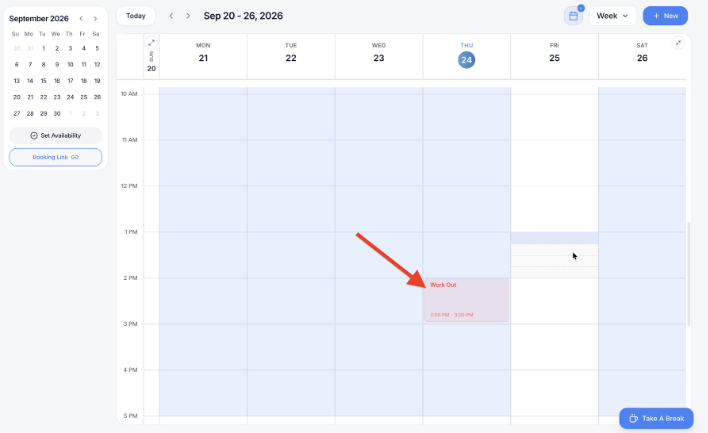
2. Click the date, then click the clock icons to set the start time and end time. In the example, the time away is Thursday, September 24, from 02:00 PM to 03:00 PM.
3. Choose whether it repeats. The options are the same as for breaks: Doesn’t repeat, Repeats daily, Repeats weekly, Repeats every 2 weeks or Repeats monthly. In the example, it’s set to Repeats weekly and 5.
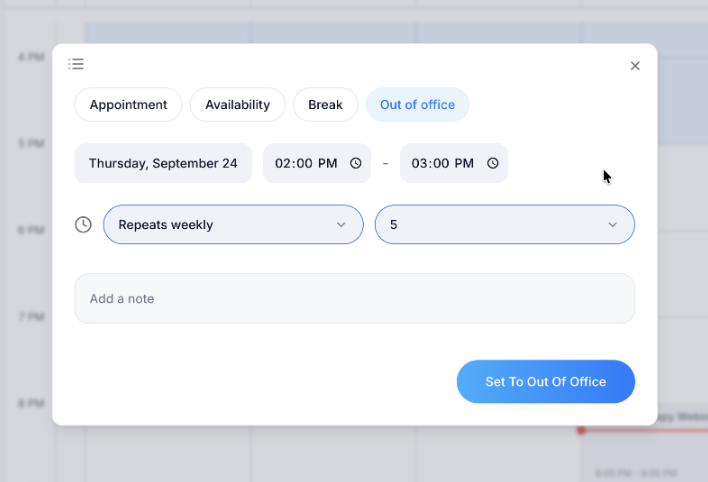
Tip: The form may keep the repeat setting you used last. Check it before saving so you don’t repeat something you meant to happen once.
4. In Add a note, type a name for the time away. This note becomes the title on your calendar.
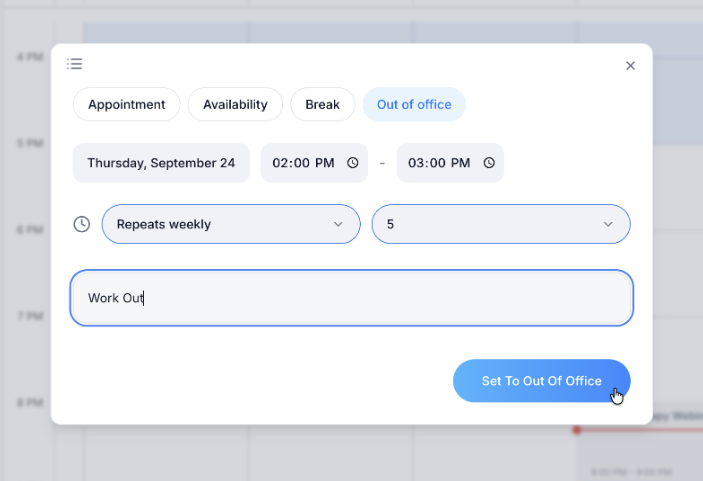
5. Click Set To Out Of Office. The form closes and the time appears on your calendar as a red block showing its title and time.
Break or out of office?