The Journals tab shows the journal entries the client has written, newest first. Each entry has a title, the date, topic tags, the client’s mood and what they wrote. You can open an AI summary of any entry.
Note: All clients, names, emails, appointments and other data shown in the screenshots are sample data we created for this guide. They are not real people or real records.
When to use this
- You want to see how the client has been feeling between sessions.
- You want a quick AI summary of a long journal entry before a session.
Read journal entries
1. In Clients, click the client’s name, then click the Journals tab. Entries are shown on a timeline with their date on the left. Each entry shows topic tags, such as communication or fatigue, and a mood tag, such as Frustrated or Sad.
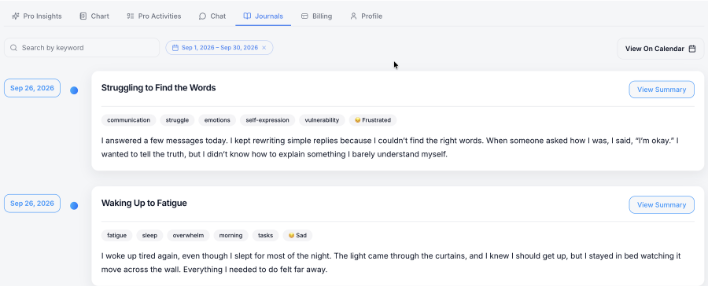
2. Optional: narrow the list. Type in Search by keyword to find entries with a word, or use the date range, for example Sep 1, 2026 – Sep 30, 2026. Click the x on the date range to clear it. Click View On Calendar to see entries on a calendar.
View an AI summary
1. On the entry, click View Summary.

2. Read the AI Summary. The summary appears below the entry, in a blue box.