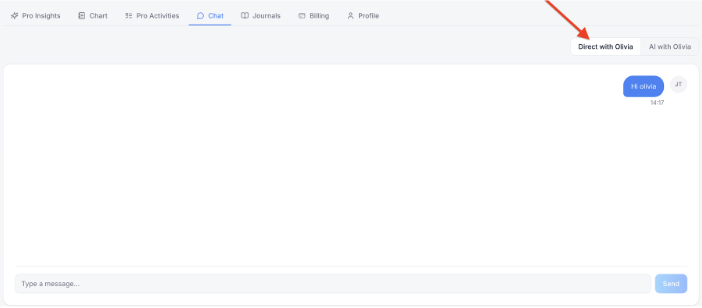
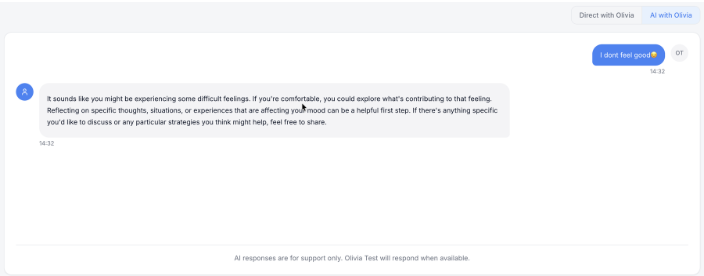
The Chat tab has two conversations with the client. Direct with the client is your private message thread with them. AI with the client shows what the client has shared with mePro’s AI support between sessions.
Note: All clients, names, emails, appointments and other data shown in the screenshots are sample data we created for this guide. They are not real people or real records.
When to use this
- You want to send the client a quick message, such as a reminder or a check-in.
- You want to see what the client has discussed with the AI between sessions.
Message the client directly
1. In Clients, click the client’s name, then click the Chat tab. Direct with the client (for example Direct with Olivia) opens by default.
2. Type in Type a message…, then click Send. Your message appears on the right with your initials and the time it was sent. The client’s replies appear on the left.
Review the client’s AI chat
1. Click AI with the client, for example AI with Olivia. You’ll see the client’s messages on the right and the AI’s replies on the left, each with the time it was sent.
2. Read the conversation. This view is read-only, so there’s no message box. The message at the bottom reminds the client that AI responses are for support only and that you’ll respond when available.
Tip: What the client shares in the AI chat is part of their record, so it can feed into Pro Insights and the Pro AI Summary.