The Profile tab holds the client’s personal details, contacts, appointment reminder settings and AI chat access. Fill in what you have; everything except the name and email is optional.
Note: All clients, names, emails, appointments and other data shown in the screenshots are sample data we created for this guide. They are not real people or real records.
When to use this
- You want to add or update a client’s contact details, address or insurance.
- You need to record an emergency contact, family doctor or referring professional.
- You want to change how and when the client gets appointment reminders.
- You want to turn the client’s access to MePro AI chat on or off.
Update a client’s profile
1. In Clients, click the client’s name, then click the Profile tab.
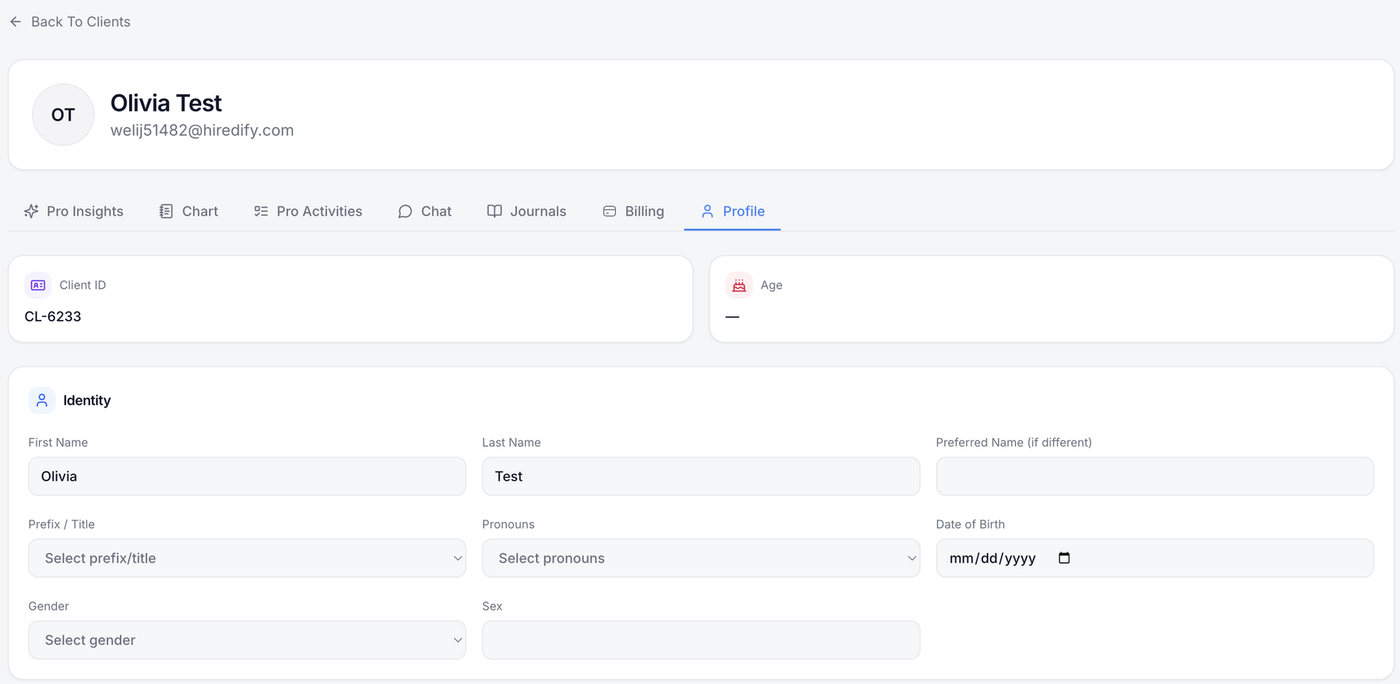
The top of the tab shows the client’s Client ID, for example CL-6233, and their Age. The age appears once a date of birth is added.
2. Under Identity, check or add the client’s personal details.
First Name and Last Name come from when you added the client. You can also add a Preferred Name (if different), and choose a Prefix / Title, Pronouns, Date of Birth, Gender and Sex.
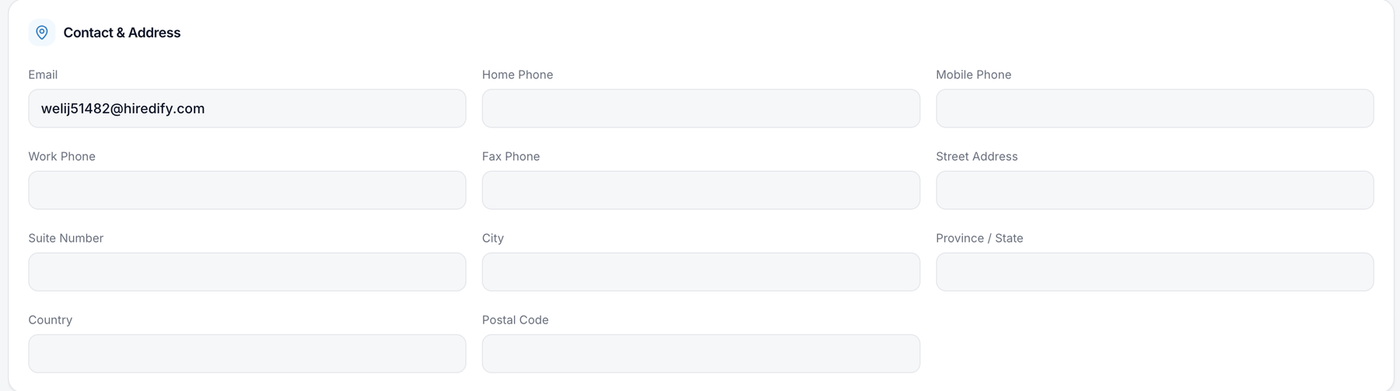
3. Under Contact & Address, add contact details.
The client’s Email is filled in. You can add Home Phone, Mobile Phone, Work Phone, Fax Phone, Street Address, Suite Number, City, Province / State, Country and Postal Code.
4. Under Demographics & Coverage, add coverage and work details.
Fields include Personal Health Number, Insurance, Occupation and Employer.

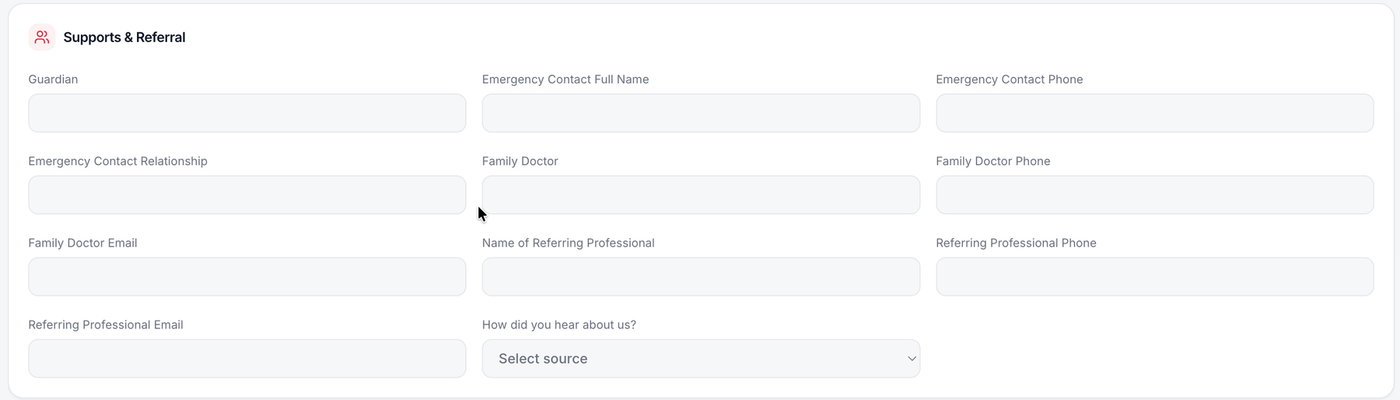
5. Under Supports & Referral, add the people involved in the client’s care.
Add a Guardian, an emergency contact (Full Name, Phone and Relationship), the Family Doctor and their phone and email, and the Referring Professional and their phone and email.
Under How did you hear about us?, click Select source and choose how the client found you. The referral details also appear under Key Information on the Pro Insights tab.
6. Under Appointment reminders, choose how and when the client is reminded.
Tick or untick each reminder: Text Message (SMS) 24 hours, 2 hours or 30 minutes before the appointment, and Email 2 days, 24 hours or 30 minutes before. Ticked reminders are sent automatically.
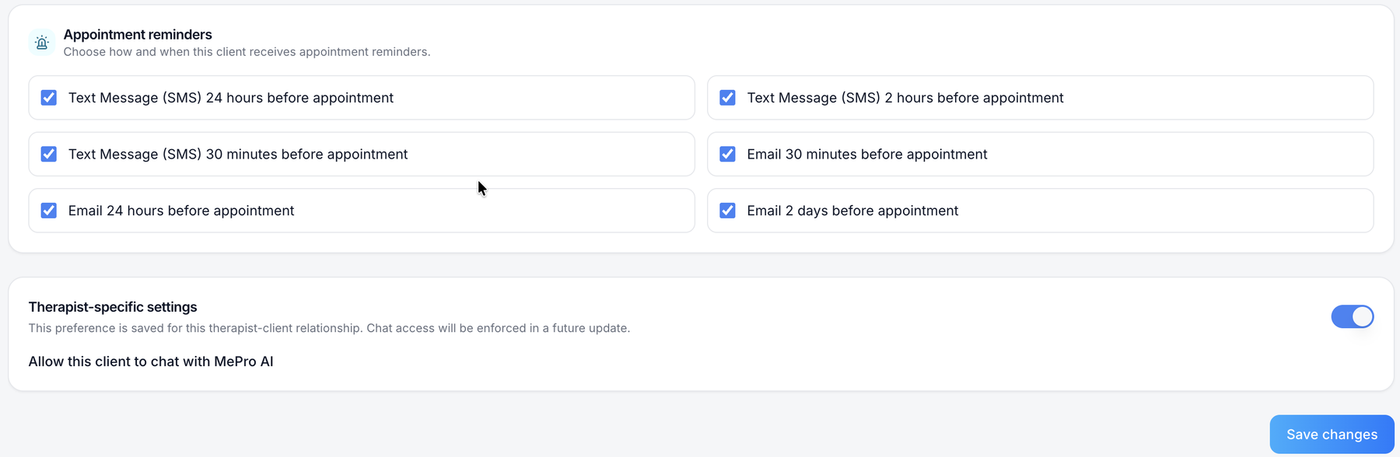
7. Under Therapist-specific settings, choose whether the client can use MePro AI.
Turn Allow this client to chat with MePro AI on or off. This setting is saved for you and this client only. As the screen notes, chat access will be enforced in a future update.
8. Click Save changes at the bottom of the page.
Tip: Remember to click Save changes before leaving the tab, so your updates aren’t lost.