Pro Insights is the first tab of a client’s profile and your quick overview of that client. mePro’s AI reads everything in the client’s record, including their sessions, journals, activities, chats, assessments and recordings, and turns it into a short summary of what’s going on: the main topics, what the client has reported, and the goals you’ve discussed. You can also listen to a short audio summary before a session, and see the client’s key numbers, such as sessions, no-shows, revenue and their next appointment.
Note: All clients, names, emails, appointments and other data shown in the screenshots are sample data we created for this guide. They are not real people or real records.
When to use this
- You want a quick catch-up on a client before their session.
- You want to see what has changed since the client’s last visit.
- You want to check a client’s sessions, no-shows, revenue or next appointment at a glance
Open Pro Insights
1. In the left sidebar, click Clients. Your client list opens.
2. Click the client’s name. Client names are shown as blue links in the Client Name column.
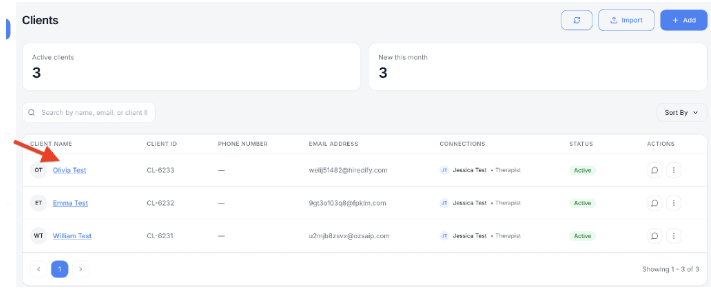
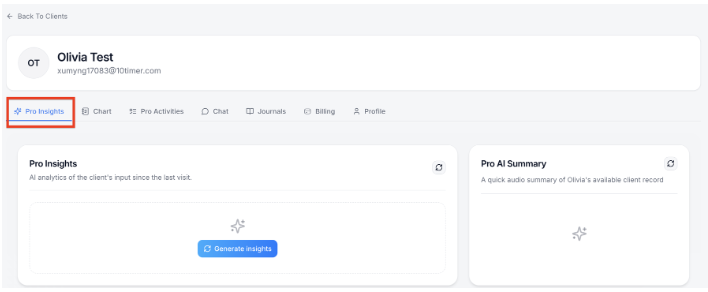
3. Check the Pro Insights tab. The client’s profile opens with their name and email at the top. Pro Insights is the first tab and opens by default. The other tabs are Chart, Pro Activities, Chat, Journals, Billing and Profile. To return to your client list, click Back To Clients.
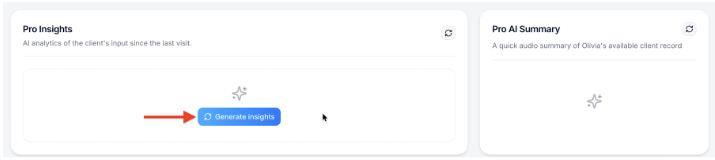
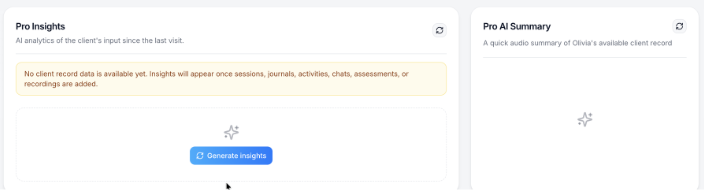
4. If no insights are showing yet, click Generate insights. mePro analyses the client’s record and shows the results in the Pro Insights card. If the client has no record data yet, you’ll see: No client record data is available yet. Insights will appear once sessions, journals, activities, chats, assessments, or recordings are added. Insights appear once there’s something to analyse.
Pro Insights card
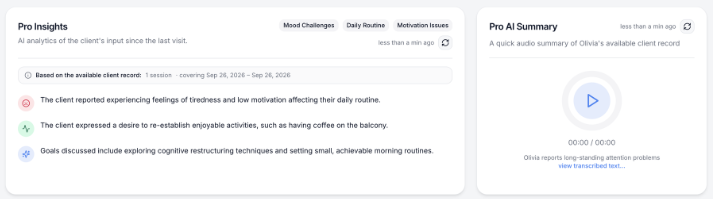
The Pro Insights card shows AI analytics of the client’s input since the last visit:
- Topic tags at the top, such as Mood Challenges, Daily Routine and Motivation Issues.
- Based on the available client record, which shows how much of the record was used, for example 1 session · covering Sep 26, 2026 – Sep 26, 2026.
- Key points from the record, such as what the client reported, what they want to work on, and the goals discussed.
- When the insights were last updated, for example 1 min ago.
To update the insights with the client’s latest information, click the refresh icon in the top right of the card.
Pro AI Summary
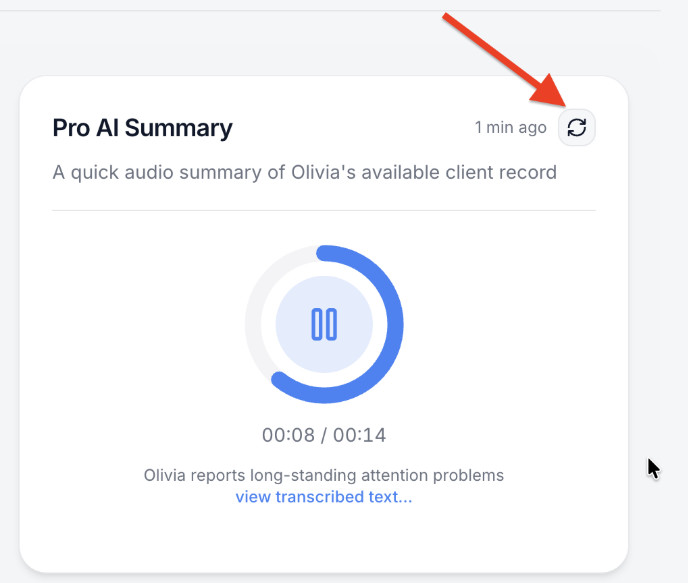
Pro AI Summary is a quick audio summary of the client’s available record. Click the play button to listen; the timer shows how far through you are, for example 00:08 / 00:14. Click again to pause.
Below the player is a one-line summary. Click view transcribed text… to read the full summary instead of listening. To create a new summary from the latest record, click the refresh icon in the top right of the card.
Key Information
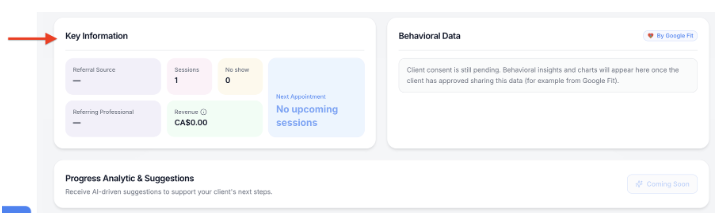
Key Information shows the client’s key details at a glance:
- Referral Source and Referring Professional: who referred the client, if known.
- Sessions: how many sessions the client has had.
- No show: how many appointments the client missed.
- Revenue: how much the client has paid, for example CA$0.00.
- Next Appointment: the client’s next booked session, or No upcoming sessions.
Behavioral Data
Behavioral Data shows behavioral insights and charts from the client’s connected data, such as Google Fit. Until the client approves sharing this data, the card shows that client consent is still pending.